How to Use Midjourney for AI Video: A Beginner's Guide
Updated: 14 hours ago
The line between still images and moving ones has been getting blurrier for a while now. If you have spent time generating pictures and wondered whether they could move, this is the natural next step. In this post, I'll take you through how to use Midjourney for video in plain English, starting from the images you already know how to make.
Midjourney built its reputation on still images. More recently it added the ability to animate those images into short clips, which means your existing library of frames is suddenly raw material for something new. The details of the feature change often, so treat the specifics here as a map rather than a manual.
If you are completely new to the platform, it is worth reading How to Use Midjourney: A Beginner's Walkthrough first. Everything below assumes you can already generate an image you are happy with.
What Does Midjourney Video Actually Do?
At its core, Midjourney's video feature is image-to-video rather than text-to-video. You do not usually describe a scene from scratch and receive a moving clip. Instead, you take a still image — one you generated, or in many cases one you uploaded — and ask Midjourney to bring it to life for a few seconds.
That distinction matters more than it sounds. It means:
Your composition is already locked in. The frame you animate is the frame you get, so a weak image makes a weak clip.
Motion is interpreted, not invented. The model decides how the elements in your picture might plausibly move.
Clips are short. Expect a few seconds at a time, with options to extend rather than one long sequence.
Compared with text-to-video tools that generate a scene from a written description, this approach often gives you more control over what the shot looks like, and less control over the story. For a wider view of the landscape, our post on AI video generators: what they are and how to start compares the main approaches.
How to Use Midjourney for Video: The Basic Workflow
Here is the sequence most people follow. Interface labels shift between updates, so look for the idea rather than the exact button.
Generate or upload a still image. Work in Midjourney as normal until you have a frame you genuinely like. Upscale it if that is part of your usual routine.
Find the animate option. On a finished image you should normally see a control for turning it into video. It typically sits alongside the usual upscale and variation buttons.
Choose automatic or manual motion. Automatic lets the model decide what moves. Manual lets you type a short description of the movement you want.
Pick a motion strength. There is usually a low-motion and a high-motion choice. Low keeps things subtle; high introduces bigger camera or subject movement.
Wait, then review. You will normally get several variations of the clip, in the same way you get a grid of image options.
Extend if it works. If a clip is going somewhere, most versions of the feature let you add a few more seconds rather than starting again.
Download and keep the still. Save both the video and the source frame. You will want the frame again when a clip does not land.
That is the whole loop. The skill is not really in the buttons; it is in choosing which images are worth animating.
Choosing Images That Animate Well
Not every beautiful still makes a good clip. After a few rounds you start to notice patterns.
Images that tend to work:
Scenes with obvious moving elements — water, smoke, cloth, fire, rain, falling leaves, crowds.
Clear depth with a foreground, middle ground and background, which gives the camera somewhere to travel.
A single clear subject rather than a busy collage of competing details.
Soft, atmospheric lighting, which hides small inconsistencies between frames.
Images that often struggle:
Tight close-ups of faces and hands, where small errors are obvious.
Dense fine text or signage, which rarely survives the transition intact.
Flat graphic designs with nothing to move.
Complex reflections, which can wobble unpleasantly.
This is why thinking about motion at the prompt stage pays off. If you write prompts that already imply depth and movement, the animation stage has something to work with. Many of the advanced prompts in the AiJoe Prompt Library are built exactly this way. Here is one that layers depth deliberately:
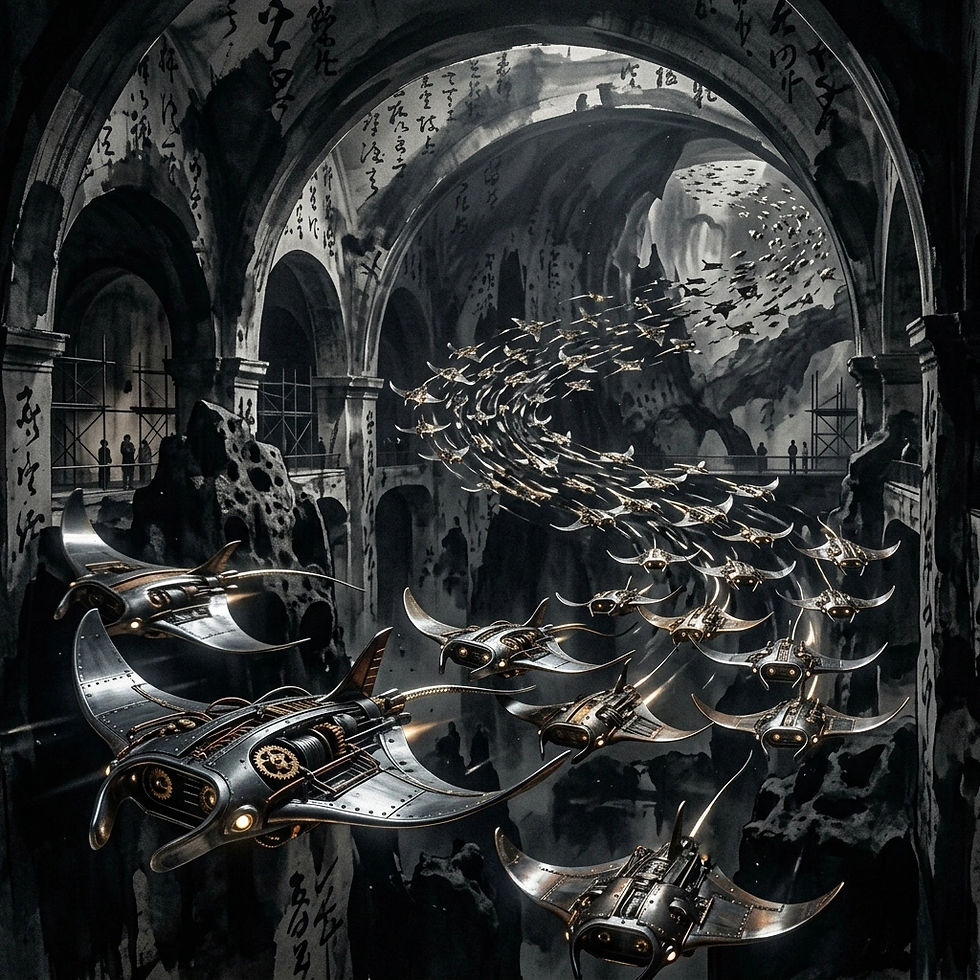
Sumi E Ink Mechanical Manta Migration [Surreal]: Extreme advanced image prompt: mechanical manta migration in a cavernous museum atrium, built from sumi-e ink, turning microtexture into landscape; hard rim light and clean specular highlights. Layer foreground, middle ground and background, show accurate material behaviour, tactile texture, refined composition, cinematic depth.
A migrating shoal in a cavernous space already suggests movement, which gives the animation stage plenty to work with. Compare that with a prompt built around stillness and craft:
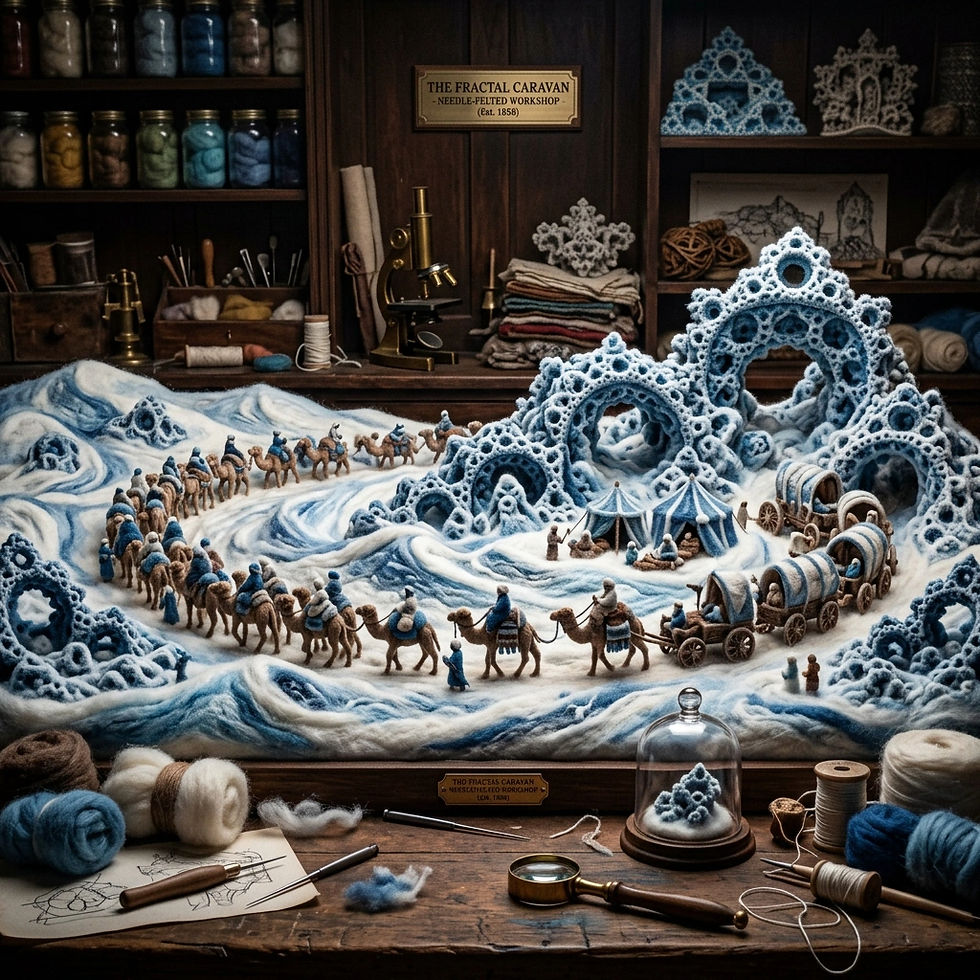
Needle Felted Wool Frozen Desert Caravan [Architecture]: Extreme advanced image prompt: frozen desert caravan in a Victorian workshop, built from needle-felted wool, forming exact fractal geometry; museum spotlights. Layer foreground, middle ground and background, show accurate material behaviour, tactile texture, refined composition, cinematic depth.
That one may be better served by a slow camera drift than by animating the subject itself. Both are from the AiJoe Prompt Library, and both are useful starting points for video experiments.
Writing Motion Prompts That Behave
When you use the manual motion option, you are no longer describing the scene. You are describing the change. That takes a bit of unlearning.
A few habits that help:
Describe one movement, not five. "Camera slowly pushes in" beats a paragraph of competing instructions.
Separate camera movement from subject movement. Decide which one is carrying the shot.
Use familiar film language. Pan, tilt, push in, pull back, drift, orbit, handheld sway.
Keep the scene consistent. Asking for a change of location or a new character mid-clip usually produces muddled results.
Favour slow over fast. Gentle movement holds together far better than rapid action.
Some examples of the kind of thing that works:
"Slow camera push in, fog drifting left to right, subject still"
"Gentle handheld sway, candle flames flickering, dust motes in the light"
"Camera pulls back to reveal the full room, no subject movement"
If your prompt-writing is still finding its feet, How to Use a Prompt Library to Speed Up Your AI Art covers how to build a reliable personal collection rather than starting from a blank box each time.
How Does This Fit With Other Tools?
Midjourney video is one piece of a workflow, not the whole thing. Most hobbyists end up combining tools, and that is a perfectly sensible way to work.
Idea and script stage: ChatGPT or a similar assistant can help you plan a sequence of shots before you generate anything. Our ChatGPT for AI art walkthrough shows how that conversation tends to go.
Frame generation: Midjourney, or any image generator you are comfortable with.
Animation: Midjourney's video feature for short, controlled clips. Dedicated text-to-video tools when you need longer sequences or spoken dialogue.
Editing: Any standard editor, free or paid, to stitch clips, add music and trim the weak ends.
Best for: Midjourney video is strongest when you want a few seconds of beautiful, controlled motion built from an image you already love. It is less suited to narrative scenes with consistent characters across many shots.
One more technique worth knowing: blending two images to create a consistent starting frame can make a series of clips feel like they belong together. How to Blend Images with AI walks through that process.
Honest Limits Worth Knowing
I would rather you hear this now than after an afternoon of frustration.
Consistency is hard. Keeping the same character across multiple clips remains one of the harder problems in AI video, and no tool has fully solved it yet.
Costs add up. Video generation generally consumes more of your plan's allowance than a still image does, so experiment with intent rather than generating clip after clip at random.
Results vary. Two runs of the same image and the same motion prompt can differ noticeably.
Audio is usually separate. In most workflows you will add sound yourself in an editor afterwards.
Rights and terms change. Check the current terms of service for how you may use what you generate, particularly if you plan to share work publicly.
None of this is a reason to stay away. It is a reason to treat early attempts as sketches rather than finished pieces. The first clip that genuinely works is a lovely moment, and it tends to arrive faster than many of us expect.
A Simple First Project: Three Frames, One Short Clip
If you want something concrete to try this week, here is a small brief.
Generate three still images of the same subject in different weather or light.
Animate each with a low-motion setting and a single camera instruction.
Pick the two clips that hold together best.
Stitch them in a free editor with a slow cross-fade and a quiet music bed.
Watch it back twice and note what broke.
That final step is the one most people skip, and it is the one that teaches you most. If you are at the very beginning of all this, How to Learn AI Art: A Beginner's Guide covers the groundwork that makes everything here easier.
FAQ
Can Midjourney make video from text alone?
Generally no. The video feature is built around animating an existing image rather than generating a clip from a written description, though the platform updates often, so check the current documentation.
How long are Midjourney video clips?
Clips are short, usually a few seconds, with the option to extend them in further steps rather than producing one long continuous sequence.
Do I need a paid plan to use Midjourney video?
Midjourney has operated on subscription plans, and video generation typically draws on the same allowance as images. Pricing and limits change, so check the official plan details before committing.
If you want somewhere to start, the free AiJoe Prompt Library is full of layered, cinematic prompts that animate well, and the Prompt Generator will build you a fresh one in seconds. Pick one, generate a frame, and see what happens when you let it move.

Comments